this site is password protected

United States Postal Service

Redesigning the Package Shipment Flow

Role
Lead UX Designer
Team
5 engineers, 1 PM, 1 PO
Project Type
Modernization
Projected Impact
43% increased customer satisfaction, 20% reduced clerk dependency
Tools
Figma, Adobe XD, Jira, Claude, React/TSX

Shipping a package at a USPS self-service kiosk took 10+ minutes. I led the redesign of the kiosk's transaction flow as USPS rolled out new AI features. Three decisions drove the results: collapsing 25+ screens into 4 stages, fixing address entry bottleneck, and letting customers suspend or void a transaction instead of abandoning it.

As this project was completed for a government client, I'm not able to share all of the original work publicly. Some of the visuals shown here have been reworked or recreated to demonstrate my process without disclosing confidential materials.

problem

Every Screen Costs a Customer

A kiosk isn't a website people browse at home. Customers have usually waited in line to reach it, often with a package in hand and people behind them. The old flow had:

  • 25+ screens
  • ~10 minutes per transaction
  • No undo, cancel, or exit
  • Inconsistent buttons that didn't meet WCAG 2.2 / Section 508


USPS was also adding AI features — a chatbot, automatic package measurement — and the existing flow had no clean place to put them. When customers gave up at the kiosk, USPS lost the sale or moved it to a clerk.

How might we make shipping at a kiosk fast and low-pressure enough that customers finish on their own?
see the current system in action →

user research

Speed, Confidence, and Guidance

I ran 12+ customer interviews, mapped the current journey for mailing a package, and audited the flow for accessibility — backed by surveys, CSAT and customer effort scores, and task timings for each step.

I also studied kiosks customers already know how to use — Delta and Amtrak check-in and bank ATMs — looking at how each shows progress and offers a way out. Their pattern: always show people where they are, and always give them a way back.

decision 1: visibility of system status

4 Stages, Not 25 Steps

What I Saw+

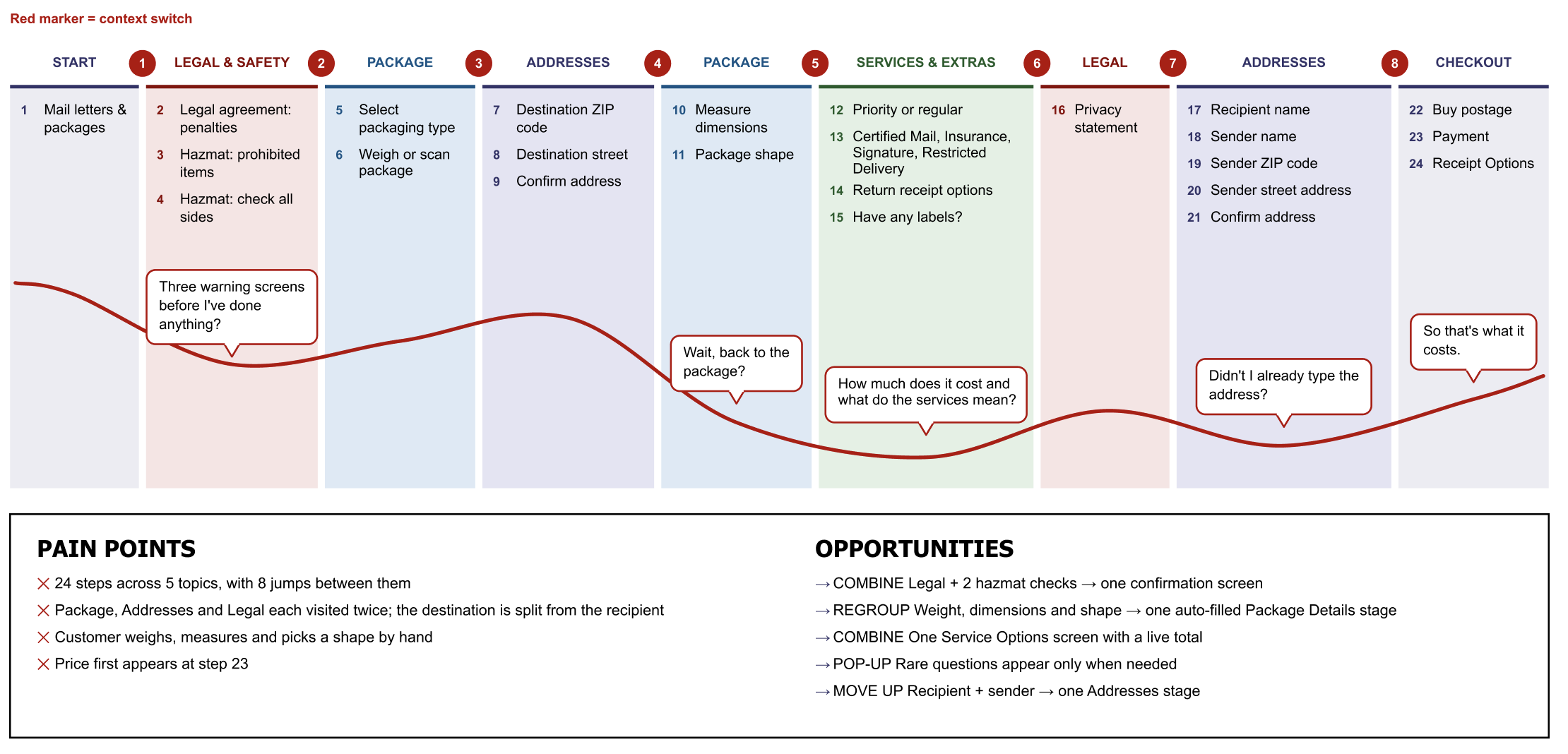
I mapped out every screen of the old package shipment flow and asked 2 questions about each one:

  • Does the customer need to make a decision here?
  • Is this in the order the customer thinks about their package?

Most screens failed. Related questions were spread far apart — the destination address was collected near the start, but the recipient's name came much later after services and labels. Customers had to switch context again and again.

What I Decided+
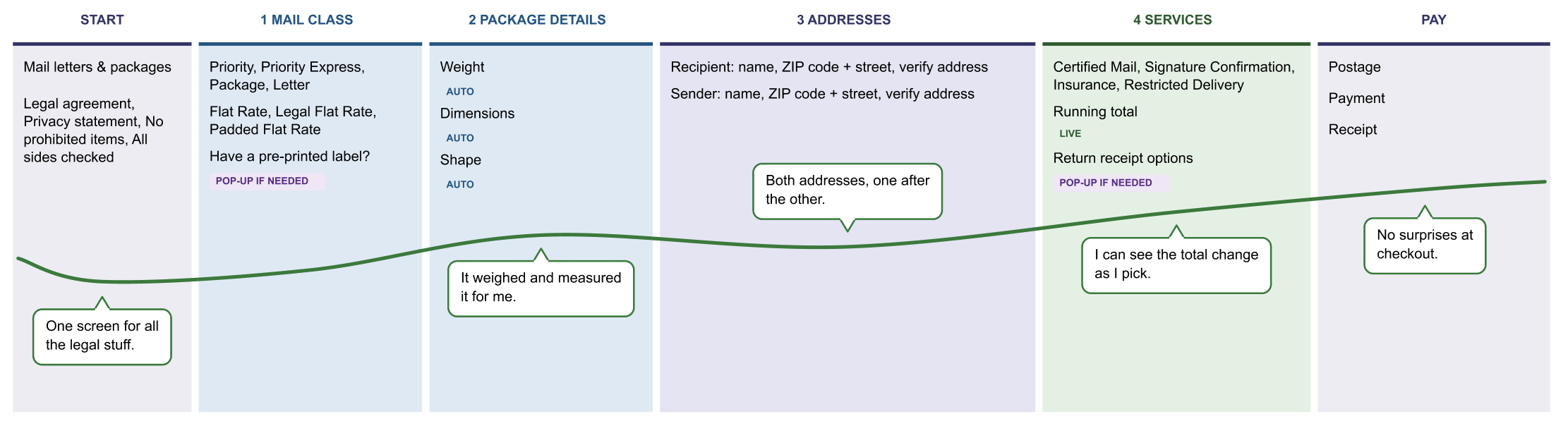
  • Legal agreement and two hazmat confirmations couldn't be removed (shipping regulations require them), but I combined them into one confirmation screen with plain-language explanations.
  • Moved mail class and package information to the start of the flow, since that's what customers think about first.
  • Grouped weight, dimensions, and shape into one Package Details stage that the scale and package-detection feature mostly fill in automatically.
  • Combined recipient and sender details into one Addresses stage.
  • Merged service choices (Certified Mail, Signature Confirmation) into one Service Options screen with a live running total.
  • Rare questions (return-receipt options, pre-printed labels) became pop-ups instead of full screens.
Why It Matters+
  • The flow runs through four clearly labeled stages in a progress bar on every screen: Mail Class → Package Details → Addresses → Services.
  • Customers always know where they are and how much is left, which lowers pressure.
  • The new structure also gave USPS a place to add AI features: Mr. Zip lives in a persistent top bar and package detection plugs into Package Details.

before

Before — package shipment flow

after

After — package shipment flow

decision 2: saved information

Fixing Address Entry

What I Saw+

Typing a full address on a kiosk touchscreen is slow and error-prone. Customers had to enter a destination zip code, then the street, then confirm it — then repeat for their own address. Each address took about 60 seconds, and a typo meant going back through several screens to fix it.

What I Decided+
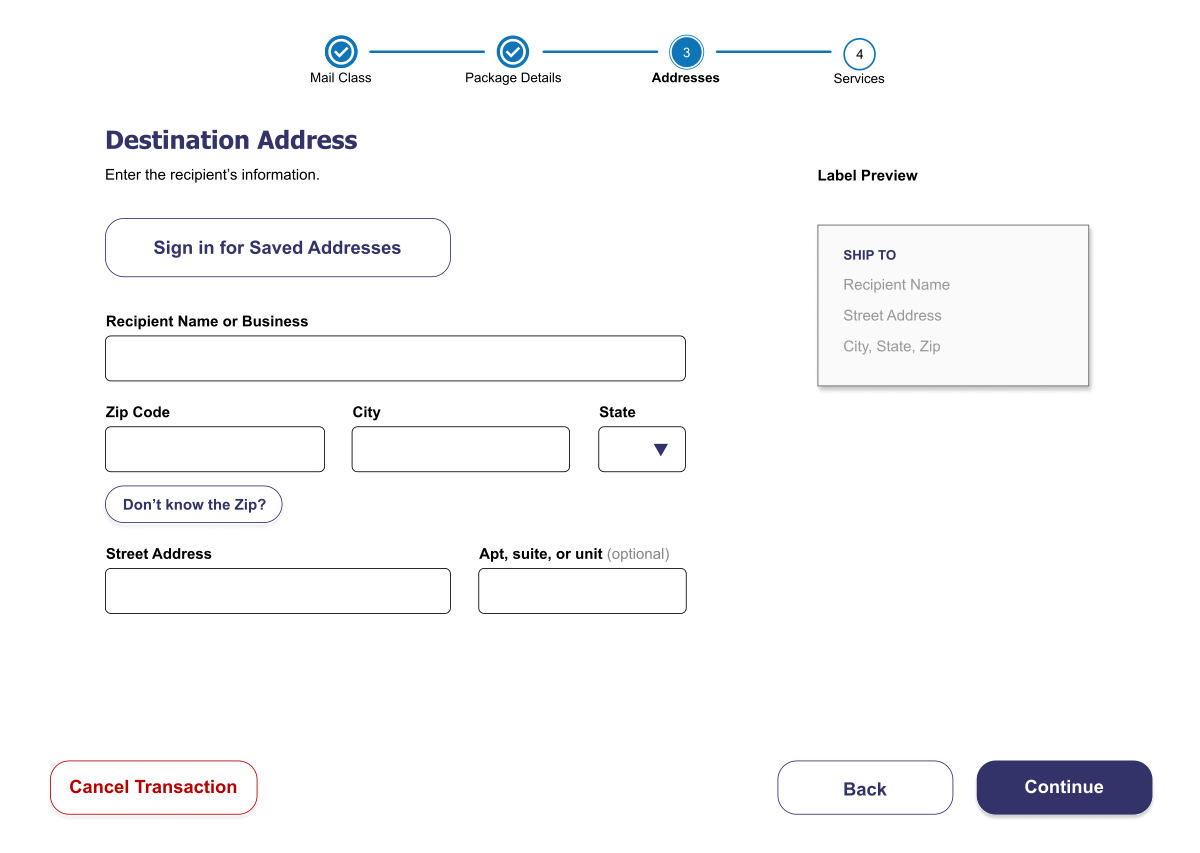
  • For logged-in customers: recipients they've saved appear as a tappable list, new addresses can be saved, and their sender address fills in automatically. The once separate confirmation modal became a label preview on the same screen. (P.S. Logging in could be a quick QR code scan from the USPS app.)
  • Added an Edit button beside each address in the final summary, so fixing a typo is one tap instead of backtracking.
Why It Matters+

Address entry was the single biggest block of time in the flow. Cutting it down had more impact on total transaction time than any other change — and it's the change repeat customers feel on every visit.

new customers

Sign in for saved addresses

returning customers

decision 3: user control and freedom

Suspend/Void and Extra Guidance

What I Saw+

The old kiosk had no safe exit. If a customer tapped the wrong option, realized they'd forgotten something, or simply ran out of time, their choices were to push through or walk away. The customer lost their progress and USPS lost the sale or sent that customer to the counter.

What I Decided+
  • I added a Cancel Transaction button that's always visible. Tapping it doesn't immediately cancel anything — it opens a choice between Suspend Transaction (saves progress and provides a voucher so they can resume at another kiosk or clerk counter) and Void Transaction (ends everything and guarantees the card won't be charged).
  • I backed this up with smaller safeguards: Back and Edit buttons on every stage, consistent button semantics (blue for primary action, red for dangerous actions, secondary for other actions), and disabled/unavailable options marked with visual cues and explanations rather than just greyed out.
Why It Matters+
  • Suspend turns an abandoned transaction into a paused one — the sale isn't lost, and even when a customer does need a clerk, the clerk starts from a finished draft instead of from scratch. Void gives customers the confidence to explore without worrying about a surprise charge.
  • Back and edit buttons provide additional control and flexibility for navigation, and visual cues/guided interactions help prevent mistakes and improve accessibility.

cancel & void

services

validation

Scoring Screens Against a Rubric

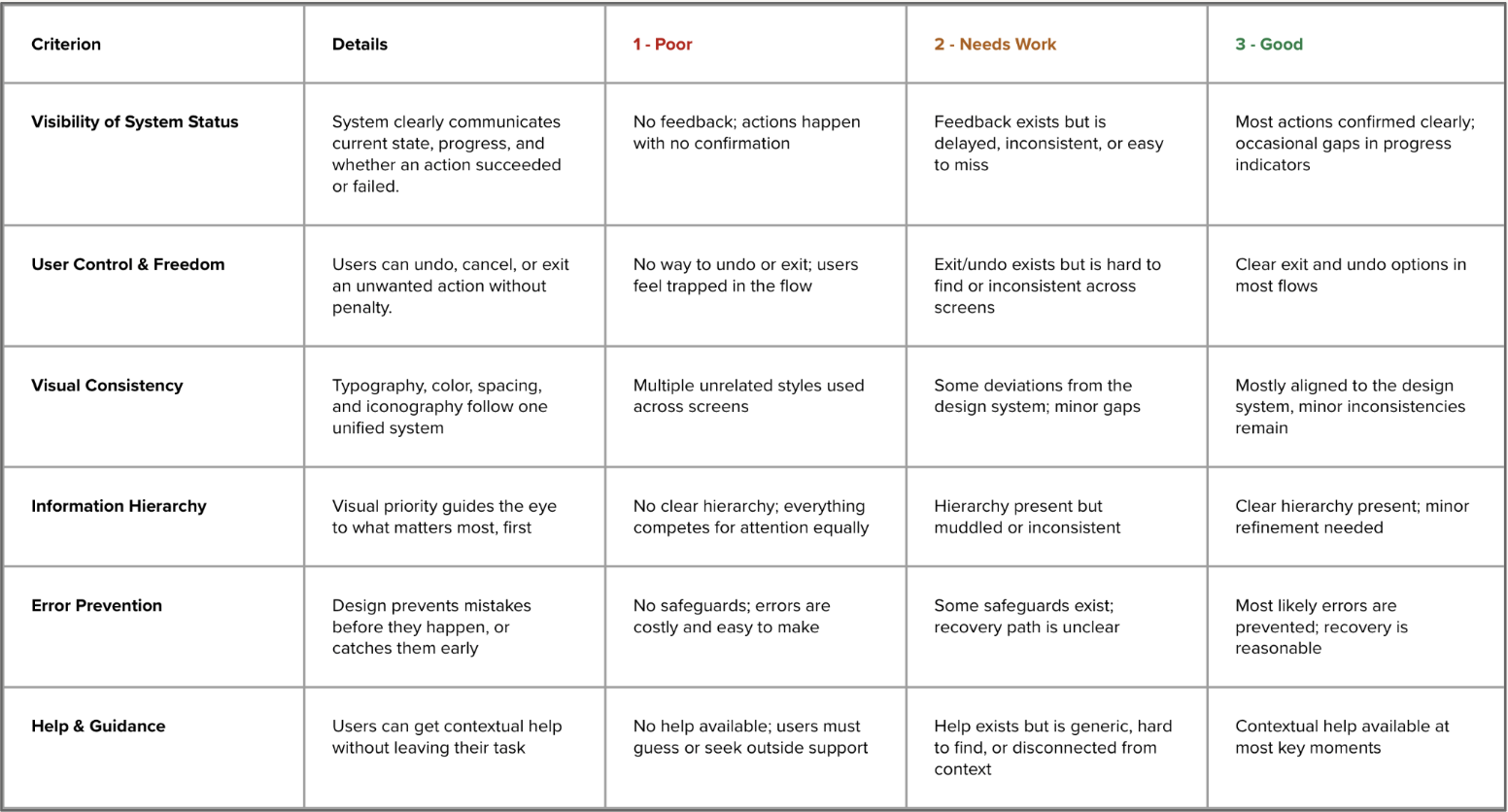
I built a heuristic rubric covering system status, user control, visual consistency, information hierarchy, error prevention, and guidance. Teammates and I scored each screen from 1 (poor) to 3 (good) and annotated where and why each issue occurred, so we could compare iterations with real numbers.

rubric to score UX/UI elements

I backed the heuristic scoring up with real user testing: think-aloud sessions, observation, A/B tests, and the IBM Accessibility Checker. Success targets were task completion efficiency above 85%, navigation success above 90%, and full accessibility compliance.

additional improvements

More Than Just the Flow

A few other things I worked on:

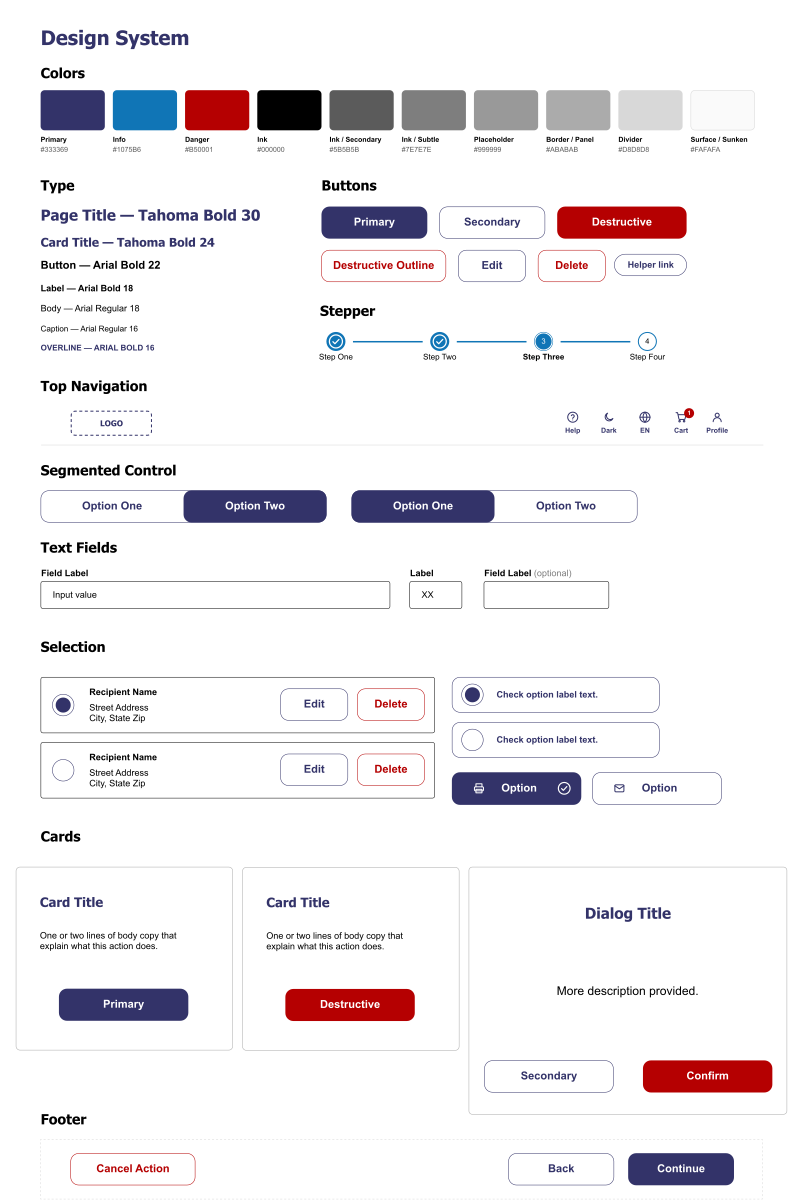
USPS design system — colors, type, components

Design System

Injected new components into the USPS design system to ensure consistency and scalability across all platforms.

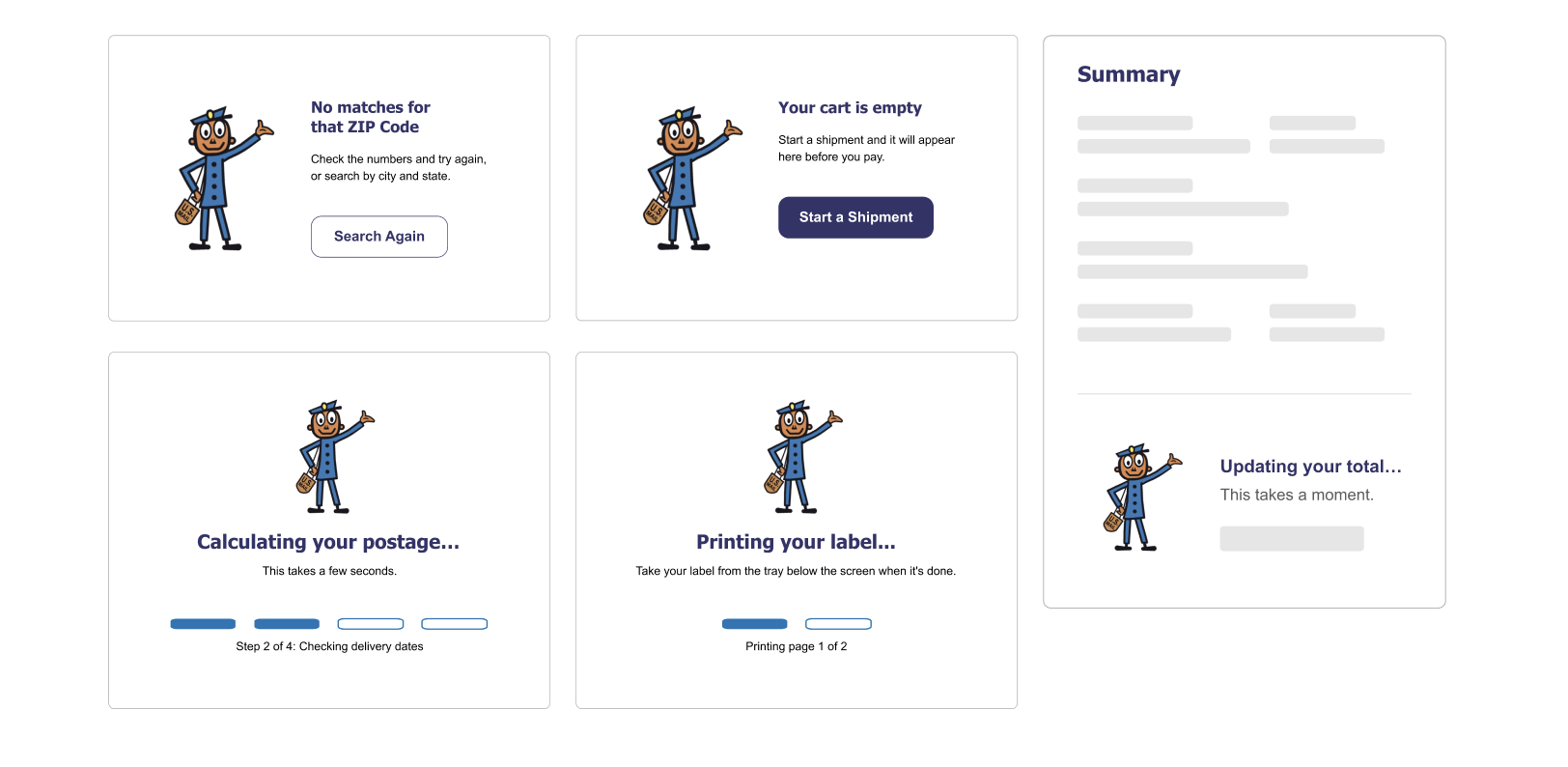
USPS empty and loading states

Empty & Loading States

Designed clear empty and loading states so the kiosk never feels stuck or broken while waiting on a response.

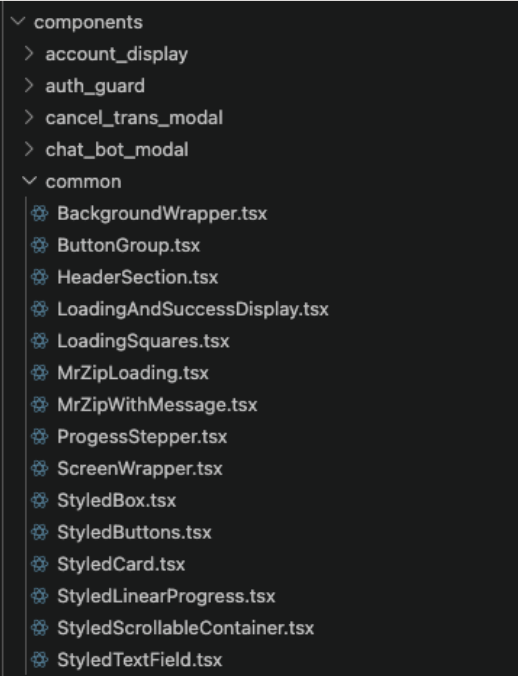
USPS component file structure

Prototyping in Code

Worked with engineers to turn one-off screens into a shared component library in React/TSX.

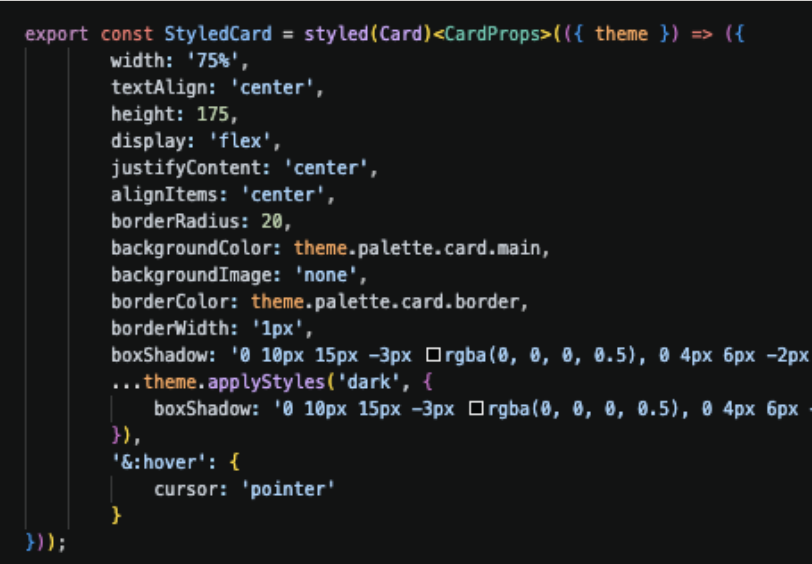
USPS styled component code

Iterating with Engineers

Refining interaction details side-by-side with the engineering team to keep the build faithful to the design.

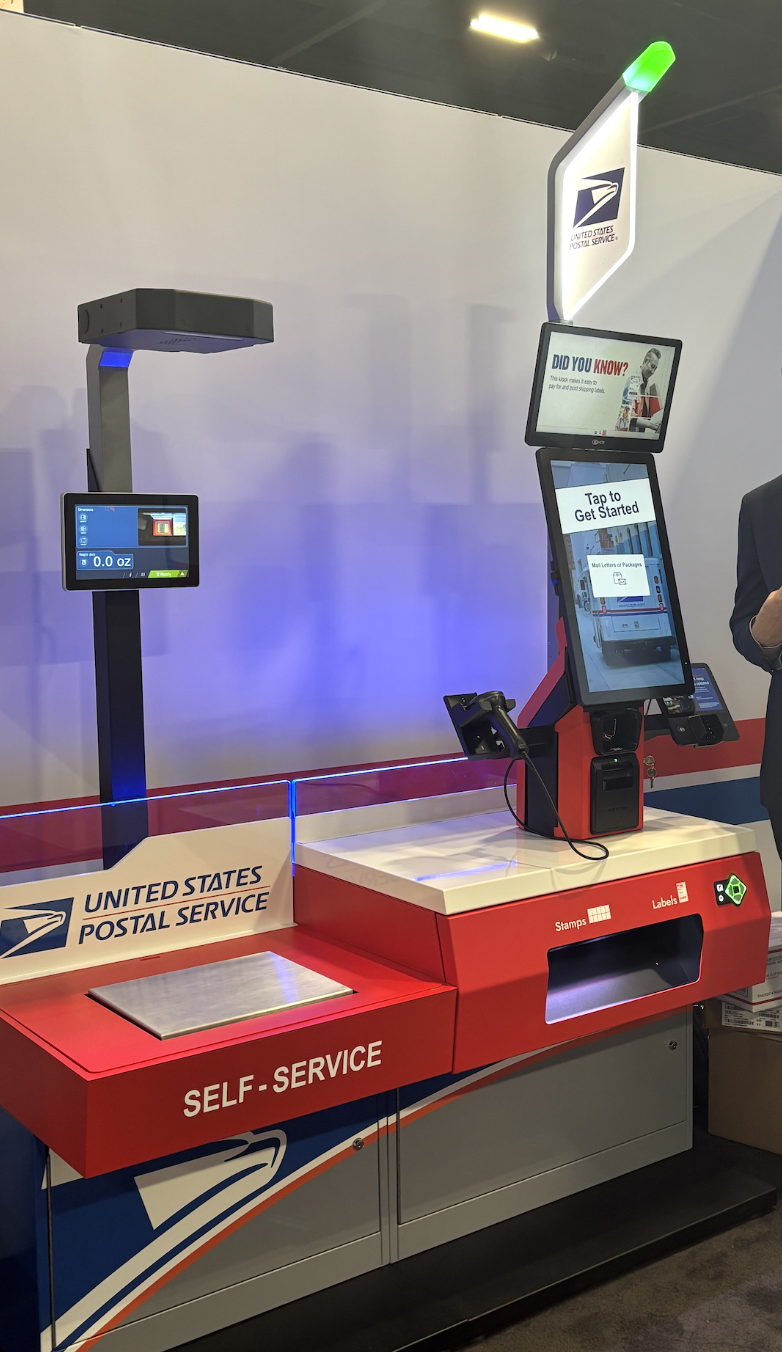
USPS new kiosk hardware

New Kiosk

Partnered with hardware teams rolling out the new kiosk units and advocated for speech-to-text investments to improve accessibility.

results

Building Confidence

MeasureBeforeAfter
Screens to ship a package25+11+ in 4 stages
Time per transaction~10 min6 min
Customer satisfaction53%96%
Clerk dependency90%70%
Navigation success rate88%92% (target: 90%+)
AccessibilityInconsistentValidated against WCAG 2.2 and Section 508

Based on improvements we saw in task completion during user testing, we also project a 43% increase in customer satisfaction and a 20% reduction in clerk dependency as the redesign rolls out further.

We removed the reasons that caused customers to give up. More customers finished a shorter, clearer flow with a visible end points. Suspended transactions came back instead of being abandoned. The new Service Options screen made add-ons visible with a running total. Faster transactions meant more customers served per kiosk per hour.

Customers used to go to the counter when they got stuck, made a mistake, or couldn't find a way out. The redesign handles all three at the kiosk — guidance through the progress bar, easy fixes with Back and Edit, and a safe exit with Suspend and Void — freeing clerks to spend their time on transactions that actually need a person.

what i took away

Less is More

Every screen has a cost. At a kiosk, customers have already waited in line, so the best design asks them for as little as possible — what can I remove, combine, or fill in automatically before adding anything new.

Confidence drives completion. The biggest wins didn't come from adding features. They came from making customers feel safe to act: showing progress, making mistakes easy to fix, and always offering a way out.